PES file viewer
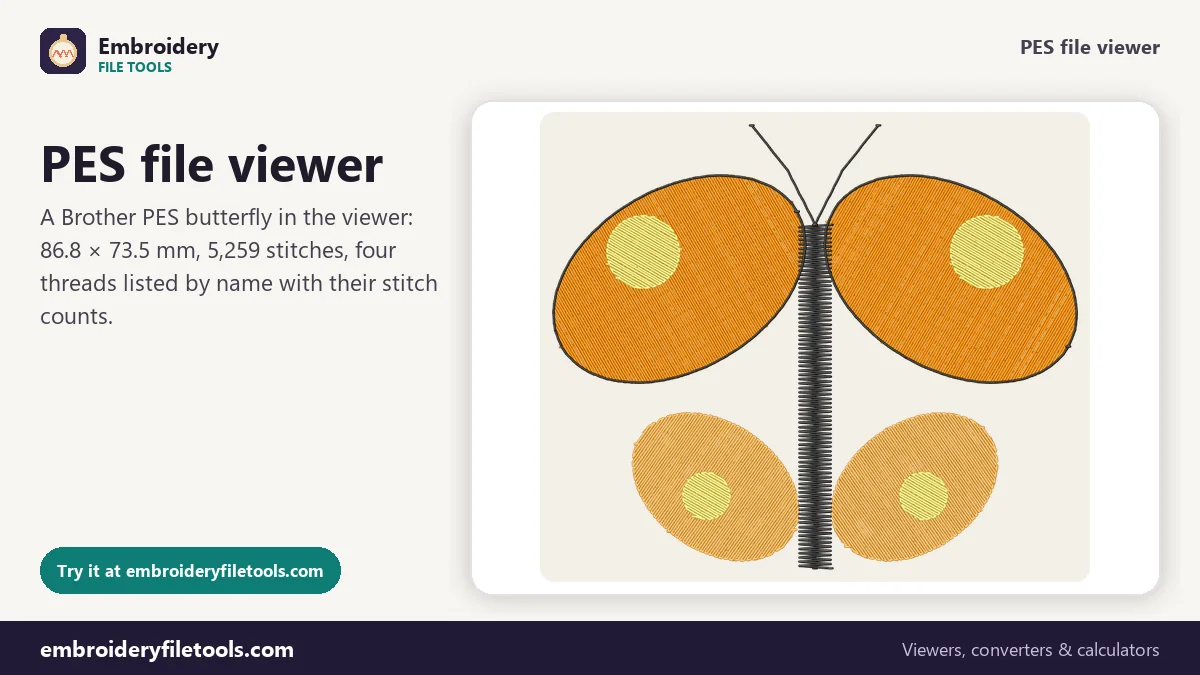
Open a Brother or Baby Lock PES design and see it in its real thread colours, with thread names, stitch count, size and sewing time.
Save as: · · · · · · ·
More options
PES is Brother's embroidery format. Brother machines, the Baby Lock machines Brother builds, and Brother's PE-Design software all use it, which makes it one of the most common files in home embroidery: a large share of the designs sold online are offered as PES first. Opening one without PE-Design or a machine is the problem this page solves. Drop a PES on the box and you see the design in its thread colours, the threads by name and number, and the figures that tell you whether it suits your project.
How to view a PES file
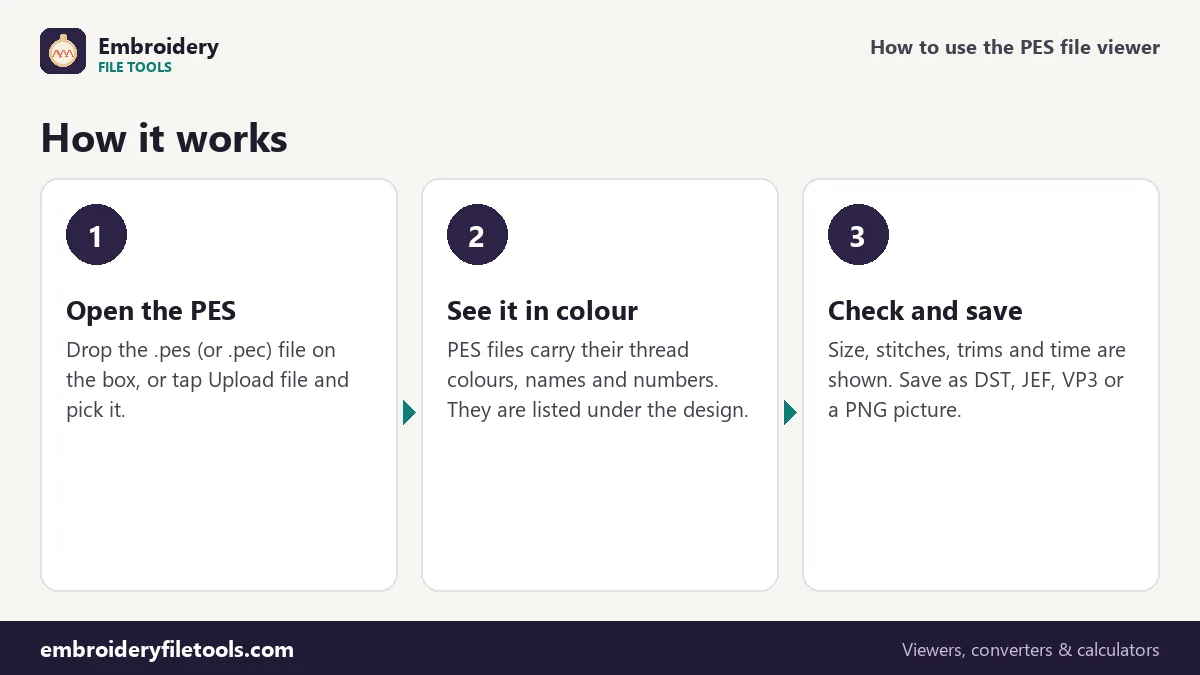
- Open the file. Drag the .pes onto the upload box or drop it anywhere on the page. On a phone, tap Upload file and choose it from your files.
- Look at the design. It is drawn in its own thread colours with a raised-thread look. Zoom with +, −, pinch, or Ctrl and the scroll wheel; drag to move around.
- Read the facts line and the thread list. Size, stitch count, colours, trims and sewing time are listed, followed by every thread with its name, brand, catalogue number and stitch count.
Inside a PES file
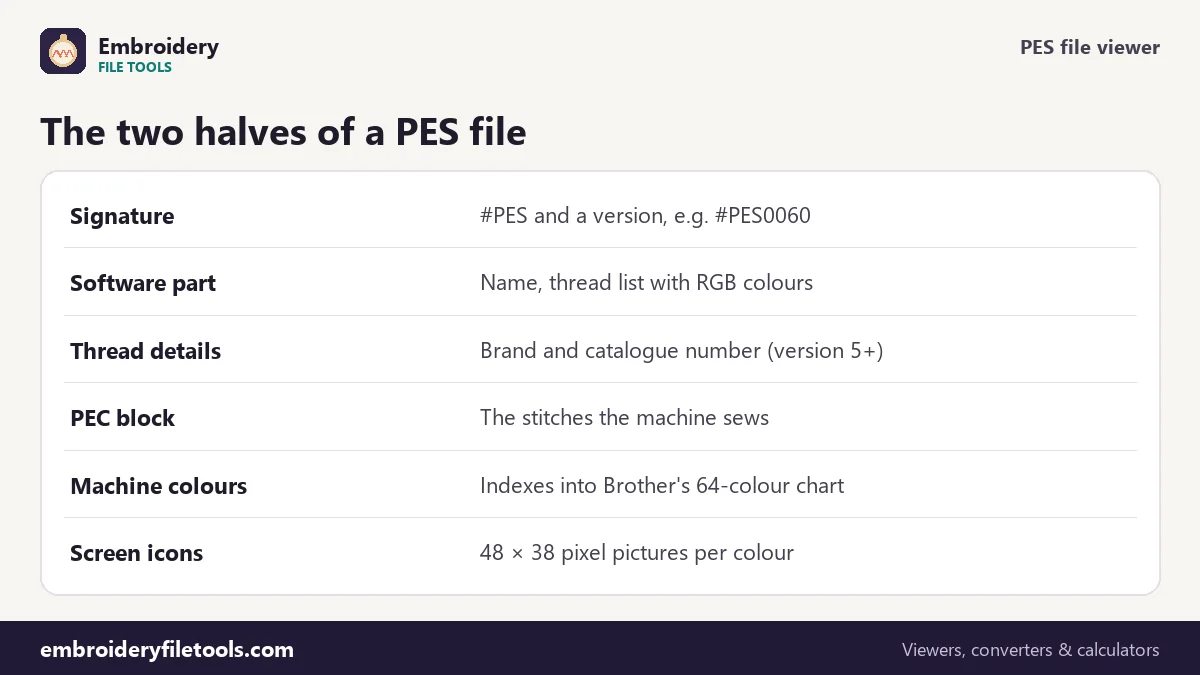
Every PES file starts with "#PES" and four digits that give its version: #PES0001 for the oldest files, #PES0060 for version 6, up to #PES0100 for files from recent software. The demo butterfly is a version 6 file, and the viewer tells you the version when you open a PES in the file format checker.
The file is really two files in one. The first half is for PE-Design: the design name, information about the hoop and the design page, and, from version 5 on, a thread list with the exact colour of each thread, its brand and its catalogue number. The second half is a PEC block, and that is the part the machine reads. It holds the stitch moves, a colour number for each thread from Brother's own 64-colour chart, and small black-and-white pictures, 48 by 38 pixels, that appear on the machine's screen for the whole design and for each colour.
The viewer uses both halves. It reads the stitches from the PEC block, exactly as the machine does, and takes the colours and names from the thread list when the file has one. For the butterfly that list is:
| Thread in the PES | Colour | Stitches | Shown on a Brother screen as |
|---|---|---|---|
| Tangerine | #fb8c00 | 2,818 | Orange |
| Apricot | #ffb74d | 1,414 | Pumpkin |
| Lemon | #fff176 | 600 | Cream Yellow |
| Black | #212121 | 427 | Olive Green |
Why the machine shows other colour names
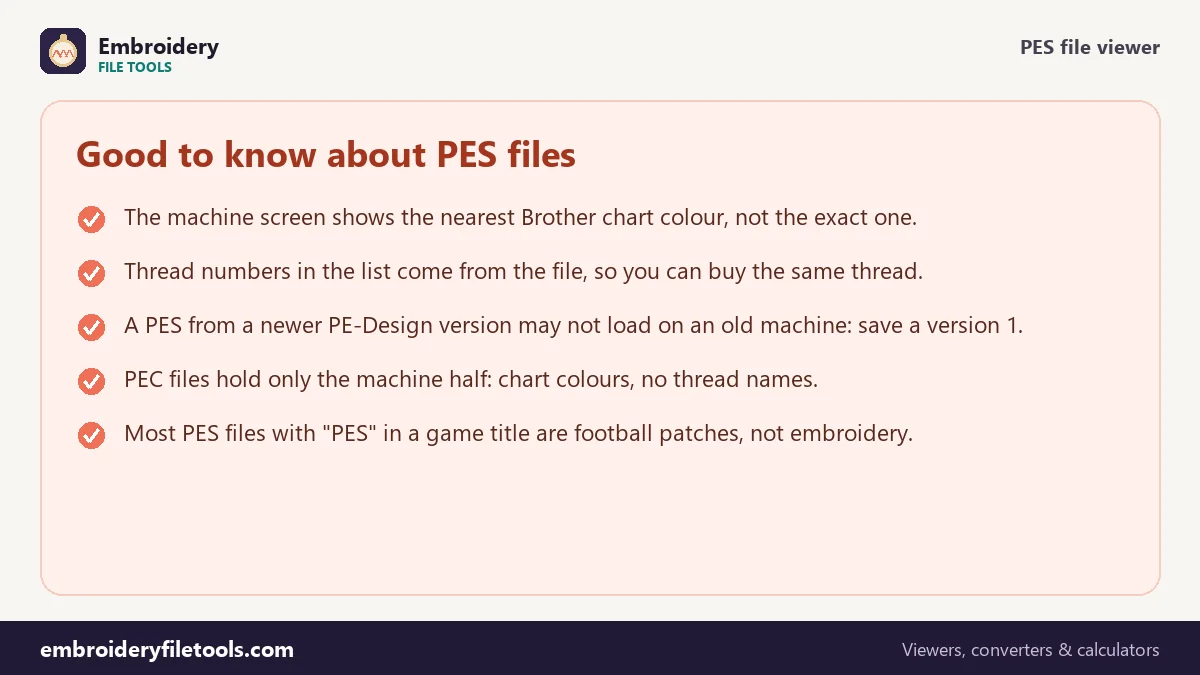
The table shows something that confuses many people: a thread digitized as black comes up on the machine screen as "Olive Green". The machine does not know about thread brands or their catalogue numbers. It only knows its own 64-colour chart, and the PEC block stores the chart colour closest to each thread. Brother's darkest chart colours include a very dark olive that sits closer to a soft black (#212121) than the chart's pure black does, so that is the one it gets.
That is a display matter only. The machine sews whatever thread you put in it. Use the thread list in this viewer, which comes from the software half of the file, when you choose your threads.
Size, stitches and time
The butterfly measures 86.8 × 73.5 mm, or 3.42 × 2.89 inches, so it fits a 4" × 4" hoop with room to spare. It has 5,259 stitches in four colours, three colour changes and 18 trims. At 700 stitches a minute on a single-needle machine, with a minute for each thread change and a few seconds per trim, it takes about 12 minutes; a multi-needle machine does it in about 7.
The file itself is 34.2 KB. The same design is 16.3 KB as DST and 10.8 KB as JEF, because those formats do not carry the PE-Design half or the screen pictures.
PEC files
A .pec file is the machine half of a PES on its own. Some older software and some machines write them. The viewer opens PEC files too. They show the chart colours, because a PEC has no thread list: a design saved as PEC loses its thread names and numbers and keeps only the nearest of the 64 Brother colours.
Saving a PES in another format
The Save as links under the viewer write the same stitches as DST, JEF, EXP or VP3. Thread colours go into JEF as the nearest Janome chart colours and into VP3 exactly, with names. DST and EXP cannot store colours at all. The PES to DST and PES to JEF pages explain those two conversions in detail.
PES viewer: common questions
How can I open a PES file without PE-Design?
Open it on this page. Drop the file on the upload box and the design appears with its colours, size and stitch count. There is nothing to install.
Is this about the PES football game?
No. PES here is the Brother embroidery format. Files for the football game, such as option files and kit patches, are unrelated and will not open in this viewer.
Why do some PES files show thread brands and numbers?
They come from the file. When the digitizer picks threads from a brand's chart in their software, a PES version 5 or later stores the brand and catalogue number, and the viewer lists them. The demo file carries colour names only.
Which PES version does my machine need?
Every Brother and Baby Lock machine reads the PEC block inside a PES, and version 1 is the safest choice for old machines. If a file will not load, save it here as version 1.
Can I change the colours and save them?
Yes. Click a swatch, choose a colour, and save as PES. A version 6 PES keeps the exact colour you picked; the machine shows the nearest chart colour.
More embroidery file tools
Updated November 2026 · How these tools work