Embroidery file converter
Open an embroidery file in any machine format, check the design, and save it in the format your machine reads: PES, DST, JEF, EXP or VP3.
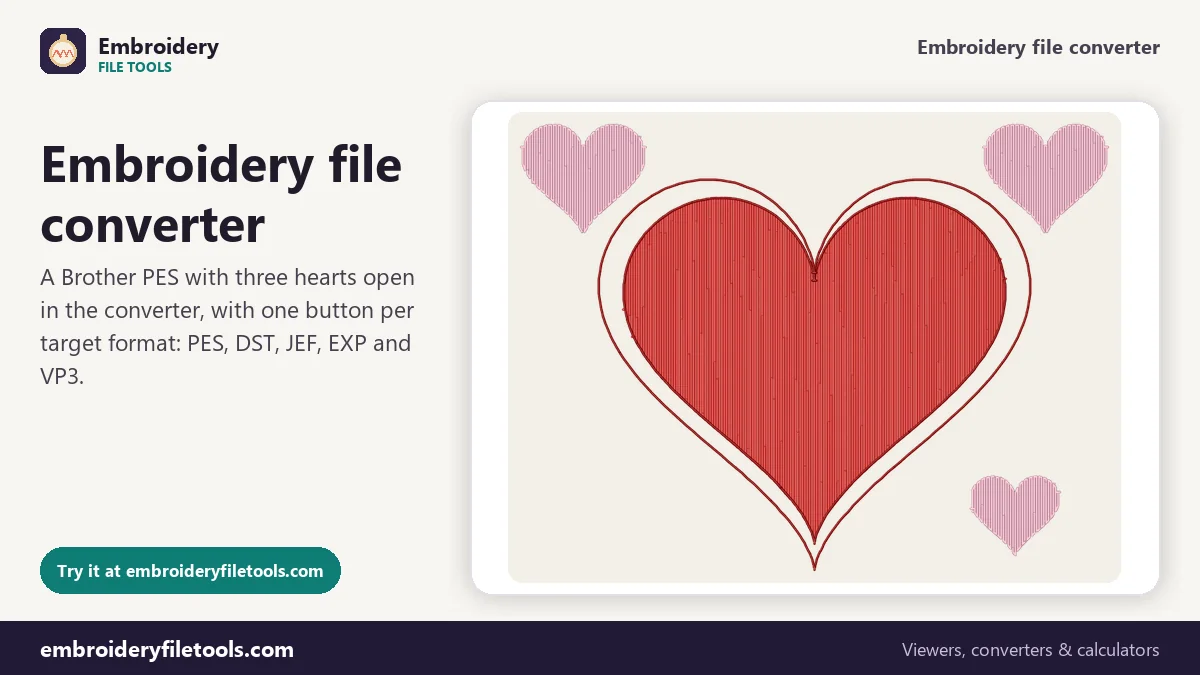
Picture of the design: · ·
More options
Every embroidery machine brand has its own file format, and a design bought or digitized for one machine will not load on another until it is converted. A Brother needs PES, a Janome JEF, a Husqvarna Viking or Pfaff VP3, a Bernina or Melco EXP, and commercial multi-needle machines DST. This converter reads all of those, plus XXX from Singer and the older HUS from Viking, and writes the five formats machines use most. It moves every stitch across unchanged and checks the new file before you download it.
How to convert an embroidery file
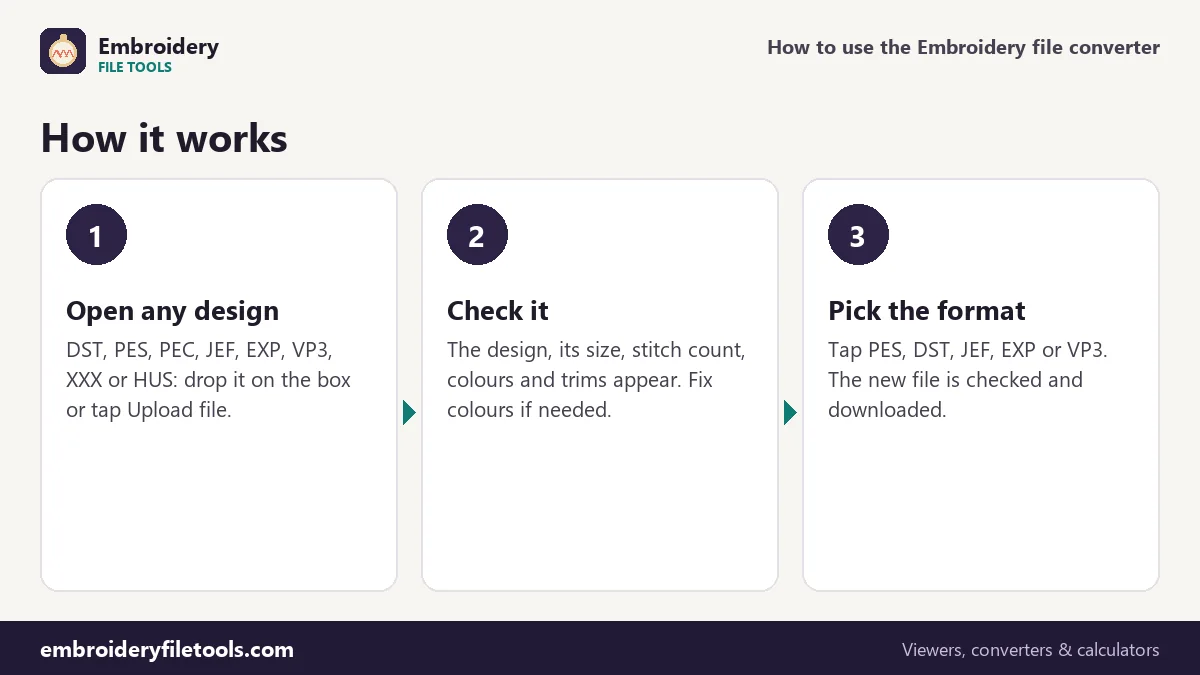
- Open the design. Drag the file onto the box at the top, drop it anywhere on the page, or tap Upload file. The format is recognised from the file's contents.
- Check it. The design is drawn in its thread colours with its size, stitch count, colours, trims and sewing time. If the file has no colours, as with DST and EXP, set them by clicking the swatches.
- Pick the target format. Tap PES, DST, JEF, EXP or VP3. The file is written, opened again as a check, and downloaded. The message under the box tells you the file size and whether the stitch count still matches.
Not sure which format your machine needs? The embroidery file formats guide has a machine-by-machine list and a checker that tells you what format a file is in.
What a conversion keeps
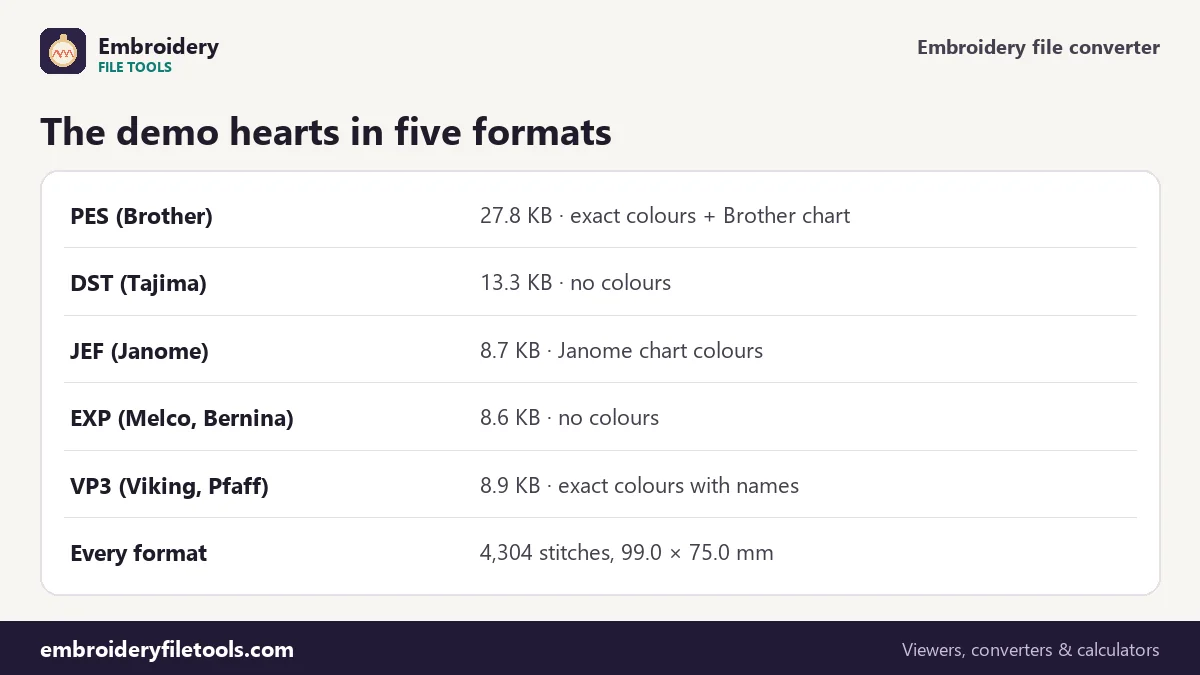
All machine formats describe the same thing: needle positions in steps of 0.1 mm, colour changes and trims. The converter copies those exactly. What differs between formats is the extra information around the stitches, and that is where conversions gain or lose something.
| Saved as | Stitches and size | Thread colours | Trims | Demo file |
|---|---|---|---|---|
| PES (version 6) | Kept | Exact colours and names; machine shows nearest Brother chart colour | Trim flag | 27.8 KB |
| VP3 | Kept | Exact colours with names, brands and numbers | Trim code | 8.9 KB |
| JEF | Kept | Nearest colour from Janome's chart | Jumps (optional trim codes) | 8.7 KB |
| DST | Kept | None, stops only | Run of three jumps | 13.3 KB |
| EXP | Kept | None, stops only | Trim code | 8.6 KB |
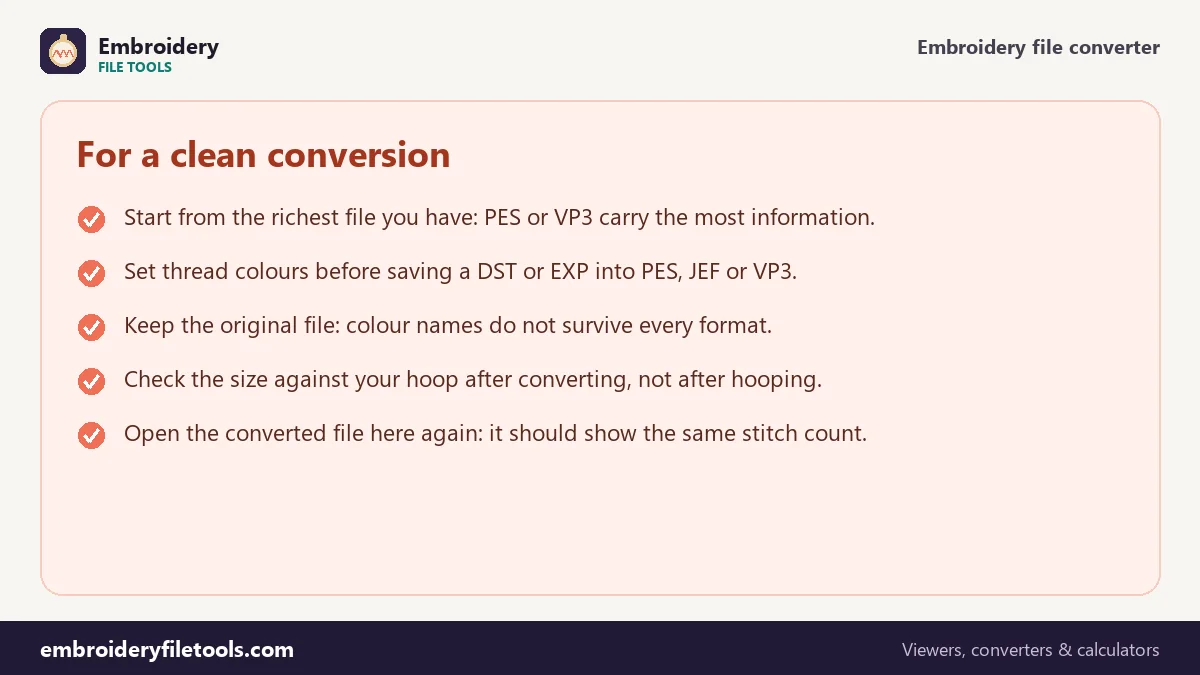
So the order of richness is roughly VP3 and PES first, then JEF, then DST and EXP. Converting downwards, for example PES to DST, drops the colours. Converting upwards, for example DST to PES, cannot invent them, which is why the converter lets you set them on screen first.
How colours are carried across
The demo hearts were digitized in three threads named Cherry Red, Blush and Wine. Saved as VP3 they stay exactly that, names included. Saved as PES they keep the same colours for software, while the machine half of the PES stores the nearest Brother chart colours, which for these threads are Vermilion, Salmon Pink and Dark Brown. Saved as JEF they become the nearest Janome chart colours: Burnt Orange 235, Orchid Pink 240 and Cardinal Red 244. None of these is wrong, but they show why a colour name on a machine screen is only a guide.
If you want different colours in the new file, change them before you save: click a swatch in the thread list, pick a colour, and the picture updates. The choice is written into PES, VP3 and JEF.
Long moves, trims and limits
Each format limits how far one record can move the needle: 12.1 mm in DST, 12.7 mm in JEF and EXP, 204.7 mm in PES. When a move is longer than the target allows, the converter splits it into several jumps; when a trim has to be written, it uses the method the target format expects. A colour change is always written as that format's colour change or stop. The result opens on the machine just as a file exported by digitizing software would.
The converter does not resize or edit designs. Changing the size of an embroidery design properly means recalculating the fills and satin stitches, which only digitizing software can do. Saving to another format never changes the density or the size.
Popular conversions
Some conversions come up more than others, and each has its own details. The pages below explain them with a demo file and measured results:
- PES to DST and DST to PES, between Brother and commercial machines.
- JEF to PES and PES to JEF, between Janome and Brother.
- DST to JEF and JEF to DST, between commercial machines and Janome.
- VP3 to PES and PES to VP3, between Viking or Pfaff and Brother.
- EXP to PES for Melco and Bernina files, and HUS to PES for older Viking designs.
Pictures are not embroidery files
A PNG or JPG of a logo cannot be converted into PES or DST the way one stitch file converts into another. A picture has no stitches; someone or something has to decide where every stitch goes, which is called digitizing. What this site can do with a picture is estimate how many stitches it would take, in the embroidery stitch calculator.
Embroidery file converter: common questions
Which formats can I convert to?
PES, DST, JEF, EXP and VP3. You can open DST, PES, PEC, JEF, EXP, VP3, XXX and HUS files.
Does converting reduce the quality of a design?
No. The stitches are copied position for position, at the 0.1 mm resolution all these formats use. Only colour information can be lost, when the target format cannot store it.
Can I convert a design to fit a smaller hoop?
Not by converting. A design has to be resized in digitizing software, which recalculates the stitches. Use the hoop size checker to see which hoops a design fits.
Why does my converted file show different colour names?
JEF, HUS and the machine half of PES store colours as numbers from the maker's own chart. Each colour is replaced by the nearest chart colour, which can have a surprising name.
Can I convert EMB or ART files?
No. Those are working files of digitizing programs, not machine files. Export them from that program as DST, PES or another machine format first.
How do I know the converted file is good?
After writing the file, the converter reads it back and compares the stitch count with the original. Open the downloaded file here again to see it for yourself.
More embroidery file tools
Updated November 2026 · How these tools work