Embroidery file viewer
Open a machine embroidery file and see the design in its thread colours, with the real size, the stitch count and how long it takes to sew.
Save as: · · · · · · ·
More options
Embroidery machines do not read pictures. They read stitch files: lists of needle positions, colour stops and trims, saved in a format that depends on the brand of the machine. A Brother wants PES, a Janome wants JEF, a Husqvarna Viking or Pfaff wants VP3, and nearly every commercial multi-needle machine wants DST. Without the right software those files are just icons on your computer. This viewer opens all of them and shows you the design the way it will come out of the machine, together with the numbers you need before you hoop any fabric.
How to view an embroidery file
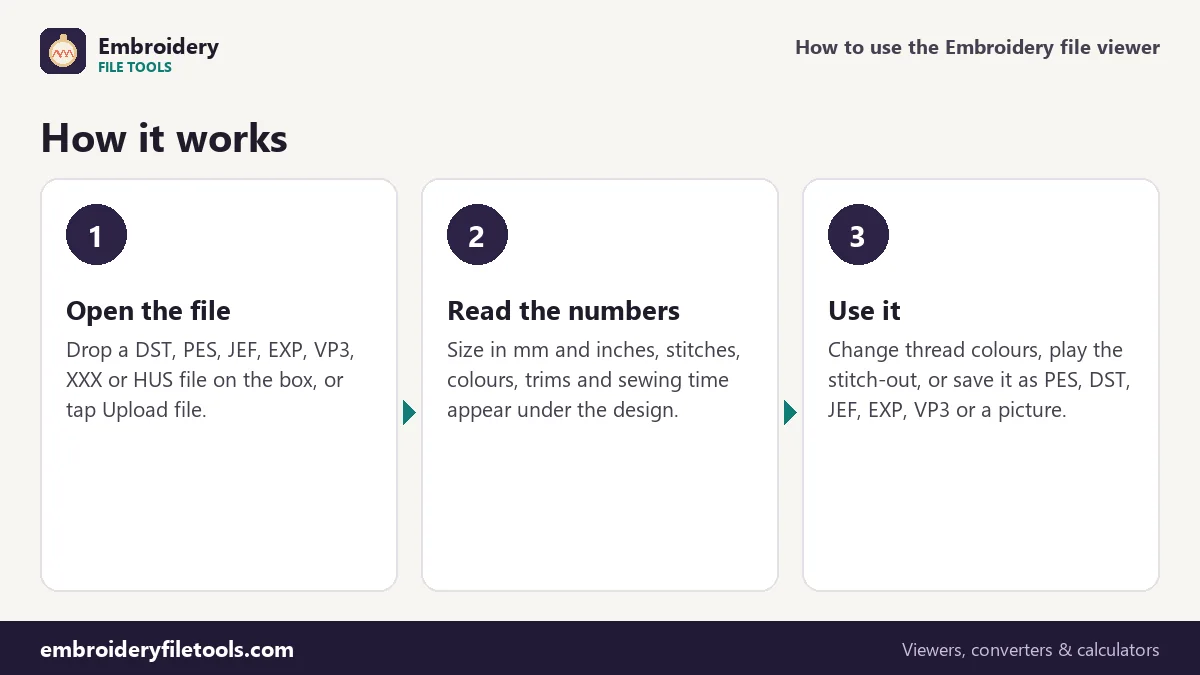
- Open the file. Drag it onto the box at the top, drop it anywhere on the page, or tap Upload file and pick it. On a phone the file picker also shows files from your downloads and cloud folders.
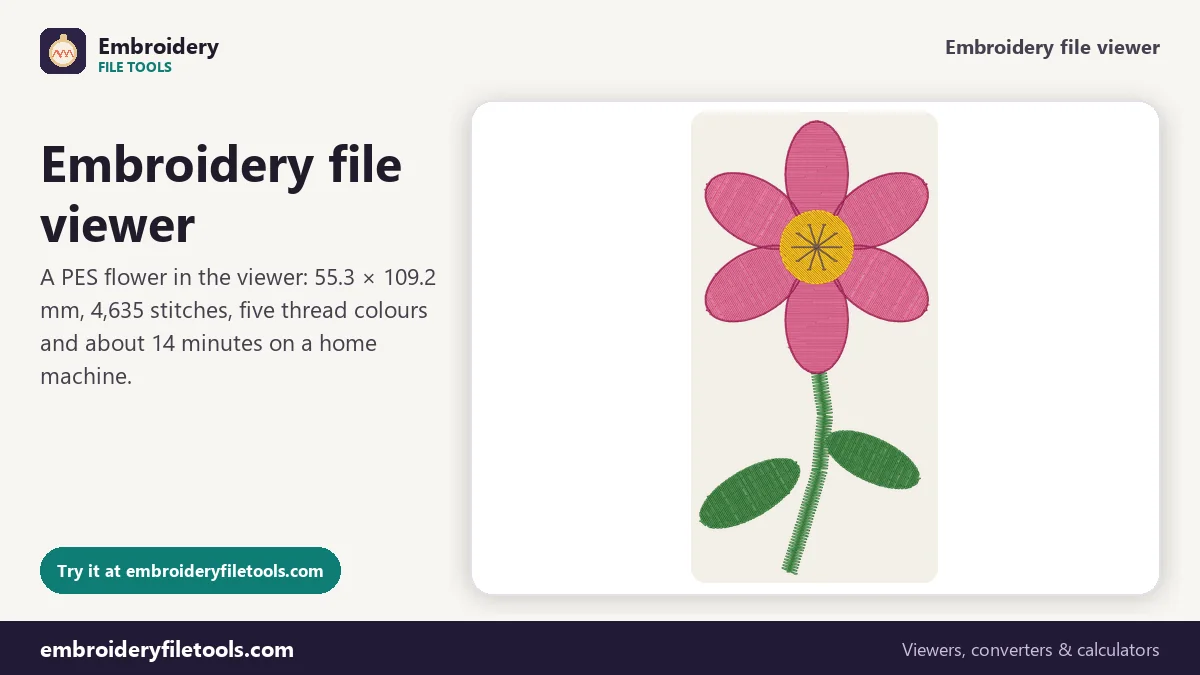
- Look at the design. The stitches are drawn in their thread colours with a slight raised look, on a natural cotton background. Drag to move around, use the + and − buttons, pinch, or hold Ctrl while scrolling to zoom. Double-click or press ⤢ to see the whole design again.
- Read the facts line. Under the picture you get the size in millimetres and inches, the number of stitches, colours, colour changes and trims, and an estimate of the sewing time.
- Check the threads. Each colour is listed with its name and catalogue number when the file has them, plus how many stitches are sewn in that colour.
Which files it opens
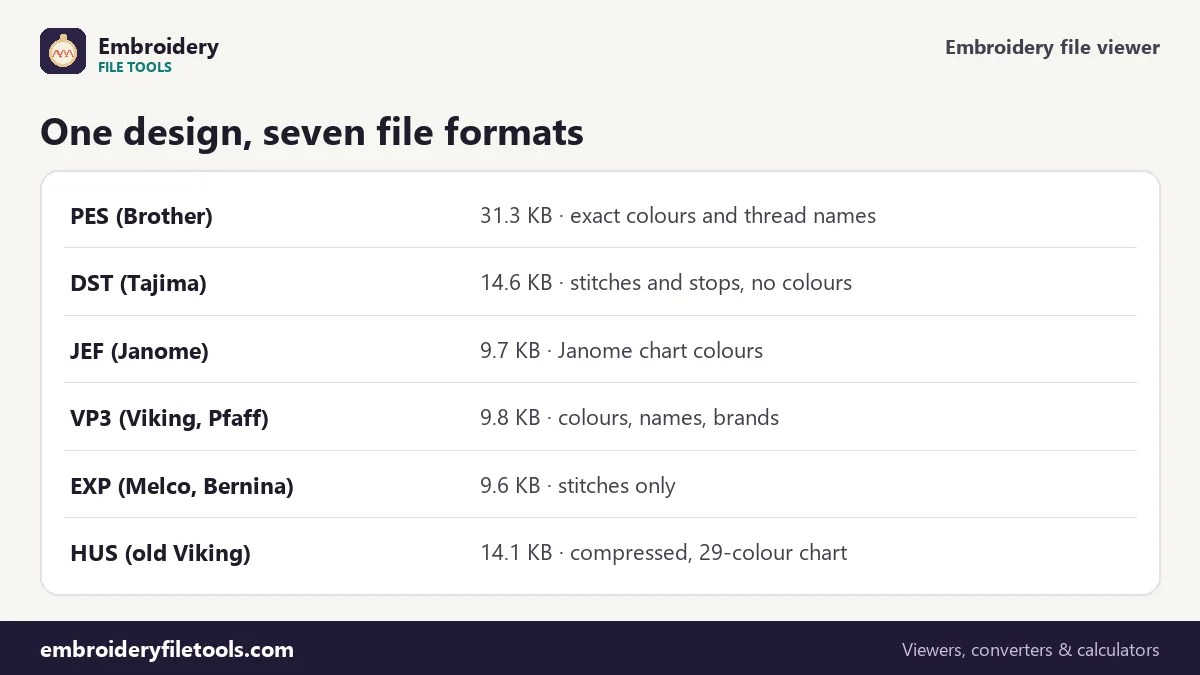
The viewer reads the formats that home and commercial machines actually use. It looks at the first bytes of the file, not only at its name, so a PES that was saved as .pec or a renamed VP3 still opens correctly.
| Format | Machines | Stores thread colours? | Here |
|---|---|---|---|
| PES, PEC | Brother, Baby Lock | Yes (PES); chart colours (PEC) | Open and save PES |
| DST | Tajima and most multi-needle machines | No | Open and save |
| JEF | Janome, Elna | Janome chart numbers | Open and save |
| VP3 | Husqvarna Viking, Pfaff | Yes, with names and brands | Open and save |
| EXP | Melco, Bernina | No | Open and save |
| XXX | Singer (Compucon) | Yes | Open |
| HUS | older Husqvarna Viking | Husqvarna chart | Open |
Files from digitizing programs, such as Wilcom EMB or Bernina ART, are working files of those programs rather than machine files. Export them from the program as one of the formats above and they will open here.
What the numbers tell you
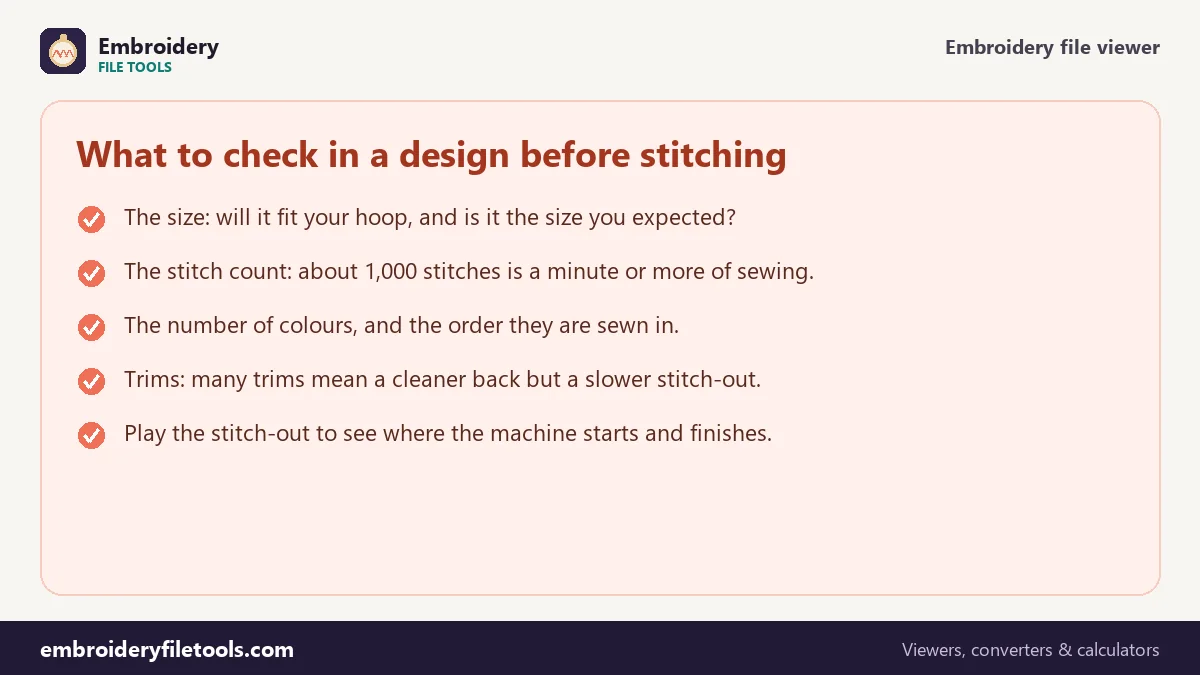
Size. Width and height of the stitched area, measured from the outermost stitches. Machine files store positions in steps of 0.1 mm, so this is the real size the machine will sew, not an estimate. The demo flower measures 55.3 × 109.2 mm, which is 2.18 × 4.30 inches. That is too tall for a 4" × 4" hoop; the hoop size checker shows which hoops it fits.
Stitches. The number of needle penetrations. It is the figure shops use to price a job and the main factor in sewing time. The flower has 4,635; a typical left-chest logo is somewhere between 5,000 and 10,000. The stitch calculator estimates the count for artwork that has not been digitized yet.
Colours and colour changes. Each colour is one thread. A single-needle machine stops at every change so you can re-thread; a multi-needle machine switches needles by itself. The flower uses five colours, so four changes.
Trims. How many times the thread is cut to travel to another part of the design. The flower has 31. More trims give a cleaner result with fewer threads to snip afterwards, but each one costs a few seconds.
Sewing time. The estimate counts the stitches at 700 stitches per minute, plus 6 seconds per trim and a minute for every colour change on a home machine. For the flower that comes to about 14 minutes. Under More options you can switch to a multi-needle machine, which runs faster and changes colour in seconds: the same flower takes about 7 minutes there.
Thread colours, and files that have none
PES, VP3 and XXX files store the actual colour of each thread, and PES and VP3 often add the thread brand and number. JEF and HUS store a number from the machine maker's own colour chart, which the viewer turns back into that chart's colour. DST and EXP store no colours at all: only "stop here". For those files the viewer uses stand-in colours and tells you so.
You can click any swatch in the thread list and choose another colour. The picture updates at once, and the new colours are kept when you save the design as PES, JEF or VP3. That is the quickest way to turn a colourless DST into a PES with the colours you want.
Stitch-out, pictures and other formats
Play the stitch-out redraws the design stitch by stitch in the order the machine sews it. It shows where the machine starts, which parts come first, and whether outlines are sewn after the fills they surround, which is how a well-made design is built.
PNG picture saves a clean image of the design at 8 pixels per millimetre, with a transparent background or the fabric colour you choose. SVG saves the stitches as vector lines, one colour per group, which is handy for mock-ups and catalogues.
The Save as links write the design in another machine format. The embroidery file converter explains what each conversion keeps, and the file format guide tells you which format your machine reads.
Questions about viewing embroidery files
Why does my DST file look like the wrong colours?
DST files contain no colour information, only colour stops. Every viewer has to invent colours for them. Click the swatches in the thread list to set the colours you plan to use.
Is the size shown the real stitched size?
Yes. Machine files store each stitch position in 0.1 mm steps, and the viewer measures the outermost stitches. Fabric pull and push can change the finished piece by a millimetre or two.
The file will not open. What can I do?
Check the extension first: EMB, ART and other digitizing-software files are not machine files. If it is a machine format and still fails, the file may be cut short, which often happens with downloads that stopped early. Download it again.
Can I edit the design here?
You can change thread colours and save the design in another format. Moving, resizing or deleting parts of a design needs digitizing software, because the stitches have to be recalculated.
How accurate is the sewing time?
It is a planning figure. Real time depends on the speed your machine actually reaches, on how long thread changes take you, and on stops for thread breaks. Set your machine's speed under More options for a closer estimate.
Does it work on a phone or tablet?
Yes. Tap Upload file to pick a design from your files, pinch to zoom and drag to move around the design.
All embroidery file tools
View embroidery files
Convert embroidery files
Embroidery calculators
Formats and hoops
Updated November 2026 · How these tools work